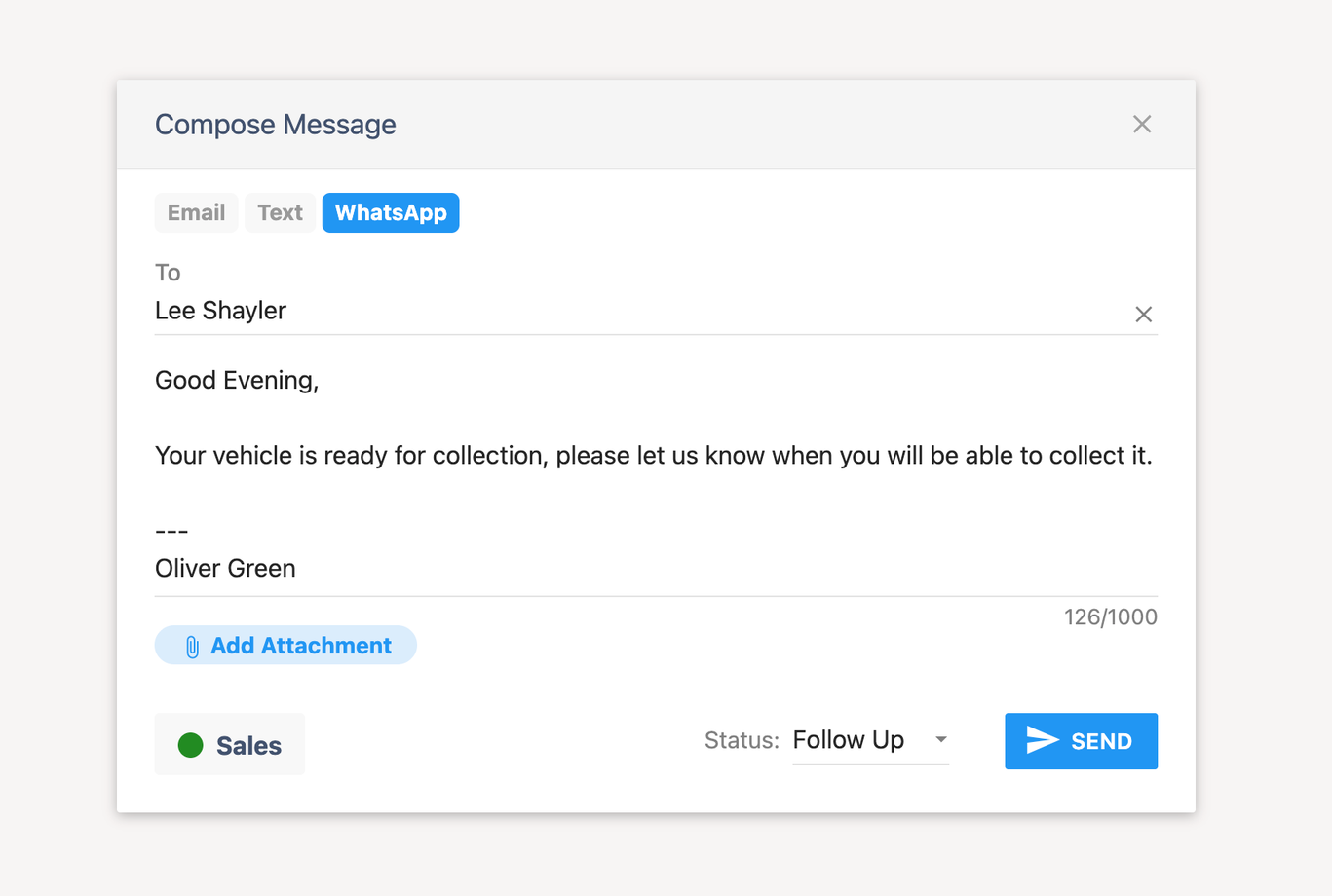
You can now send WhatsApp messages directly from your CRM, making it easier to stay in touch with customers throughout their car-buying journey.
From following up on a vehicle enquiry to arranging a viewing or sharing an update, you can reach customers on WhatsApp while working in the system you already use to manage your dealership.
To get started, contact our support team to request access. Then follow the onboarding guide to set up your account and start sending WhatsApp messages from your CRM.
You can now set inspections and jobs to start automatically, and check each vehicle's job progress in prep manager.
Add inspections automatically when a vehicle is checked in You can now set an inspection type to be added automatically when a vehicle is checked into stock. The inspection is added when the vehicle's status changes to In Stock, so it's ready for your team straight away. You can still use rules to choose which vehicles get the inspection.
If a check-in is undone and the vehicle goes back to Due In, any inspection that hasn't been completed yet is removed. A vehicle moving on to reserved or sold doesn't remove it, so outstanding inspections stay in place.
Create jobs automatically when an inspection is completed Job types have a new automation trigger: Inspection completed. Choose a specific inspection, or Any Inspection, and DealerKit creates the job on the vehicle as soon as that inspection is completed. For example, you could raise a valet job automatically when the PDI is signed off.
Together, these let you automate the whole process: a vehicle is checked in, its inspection is added, and its prep jobs follow once the inspection is done.
Create jobs automatically when a vehicle's status changes Job types have another new automation trigger: when a vehicle reaches a stock status. Choose the Triggering Status: Due In, In Prep, In Stock, Reserved, Awaiting Delivery, Sold, Written Off or Non-Stock. DealerKit then adds the job to the vehicle as soon as it reaches that status. For example, you could raise a collection job when a vehicle is Due In, a valet when it goes In Stock, or a handover prep job when it's Reserved. Each vehicle only gets the job once, so it won't be added again when the vehicle is updated later.
Vehicle job completion status in prep manager The prep manager grids have a new Jobs column. It shows how many of each vehicle's jobs are complete, for example 3 / 5. Hover over it to see the job card with each job and a tick next to the ones that are done. You can also sort by the column.
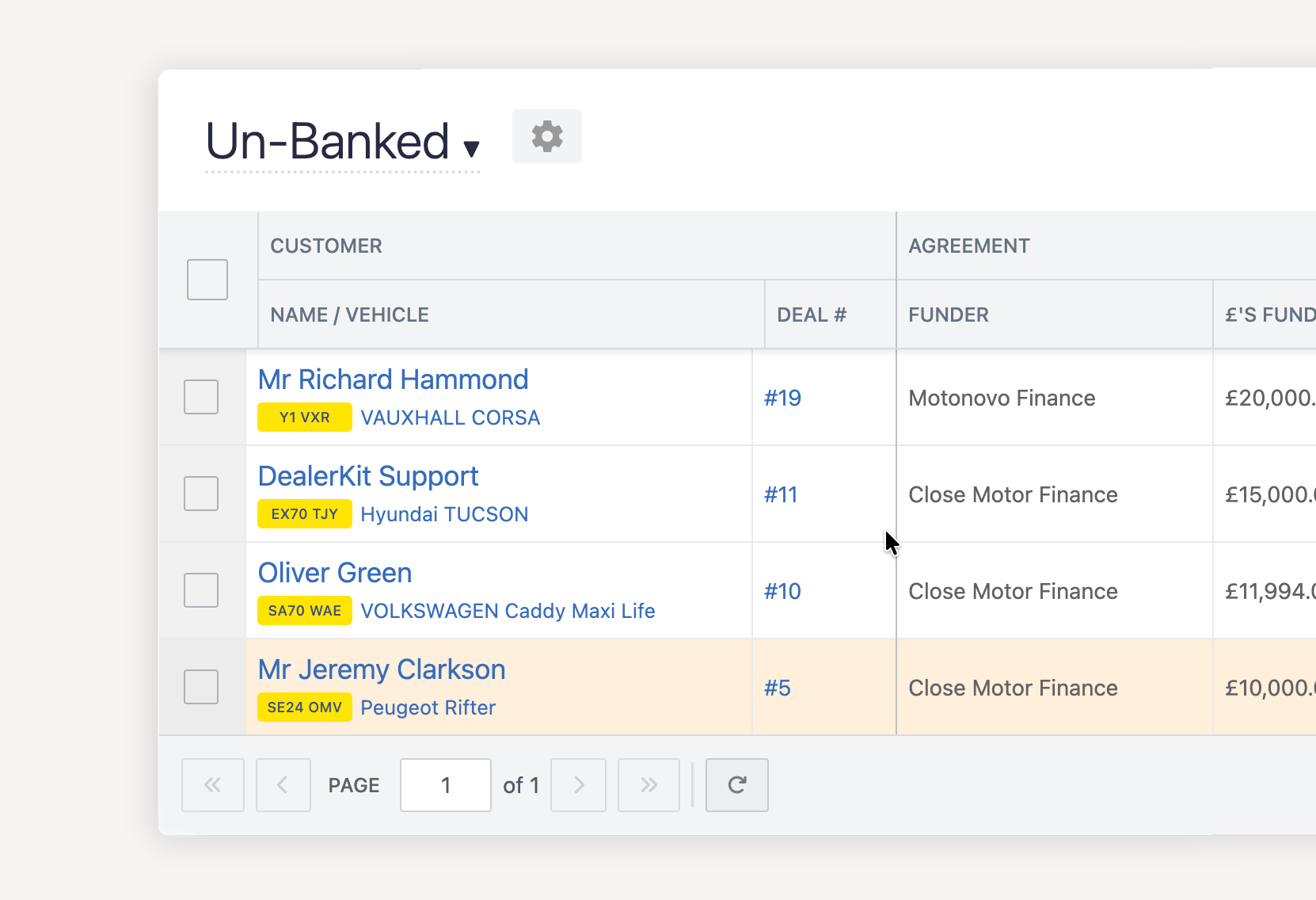
We've rebuilt the finance agreements screen to make managing your finance deals quicker, and added bulk updates for commission.
A clearer, easier-to-edit finance screen The finance screen now uses the same grid as the rest of DealerKit, and it's much easier to work with:
Customer, vehicle and deal number stay visible. They're pinned to the left, so you always know which deal you're looking at while you scroll across the other columns.
Tidier columns. Columns are grouped into Agreement, Finance and Commission. The save button is pinned to the right.
Totals at a glance. A summary row shows total funded, contra, payout and commission, plus the number of agreements.
Quicker editing. Click once on a cell to edit it, whether that's the finance type, term, monthly payment, balloon, status, payment date or commission. Fields that don't apply yet show a grey dash, and empty fields you can edit show a placeholder, so it's clear what you can fill in.
More on each page. You now see 100 agreements per page, and searching takes you back to the first page.
Your saved views, filters and search all work as before.
Bulk update commission payment methods and dates You can now update commission on lots of agreements at once, without editing each row. Select the agreements, click Bulk Update, and tick Commission Status to set the commission payment method and paid date for all of them.
You can update the payment status and the commission together in one go. For example, you can mark a batch of payments as Banked and record their commission at the same time. Commission can only be recorded once a payment is banked. If any agreements you've selected aren't banked yet, the bulk update tells you how many will be skipped.
We've made some improvements to our Xero integration, so refunds and overpayments now reach your books automatically. You won't need to fix them by hand any more. These are enabled for accounts connected in September onwards, if your account was connected before then just drop a support a note with the date you would like us to start sending refunds from.
Credit notes for refunded products When you refund a product on a sale, DealerKit now sends a sales credit note to Xero for it. The original invoice stays as it is, and the refund shows up against it correctly.
Credit notes and reversal journals for refunded invoices When you refund a whole invoice, DealerKit sends a credit note to Xero. If the vehicle goes back into stock, we also send reversal journals:
The vehicle's cost goes back onto the balance sheet and comes out of the P&L.
Any preparation costs we moved into expenses when the vehicle sold go back onto the balance sheet too.
These journals are dated to the refund, so your stock value in Xero matches your stock in DealerKit. If you sell the vehicle again later, the journals are sent again as normal.
Customer overpayments for overpaid invoices Xero won't accept a payment that's bigger than the invoice it pays. Before, this meant the payment failed to export. Now DealerKit splits it in two. The amount the invoice can take is allocated to the invoice, and the rest goes to Xero as a customer overpayment. If you later refund the extra money to the customer, the refund is paid out of that overpayment.